Who What Where
A suite of diagnostic tools for network monitoring. See which IP addresses your computer communicates with and where they're from, use a hotkey to have ping results read out to you, visually trace the route of your packets, and use the Watchdog to get notified in real-time when network packets match rules that you've defined.
Features and usage
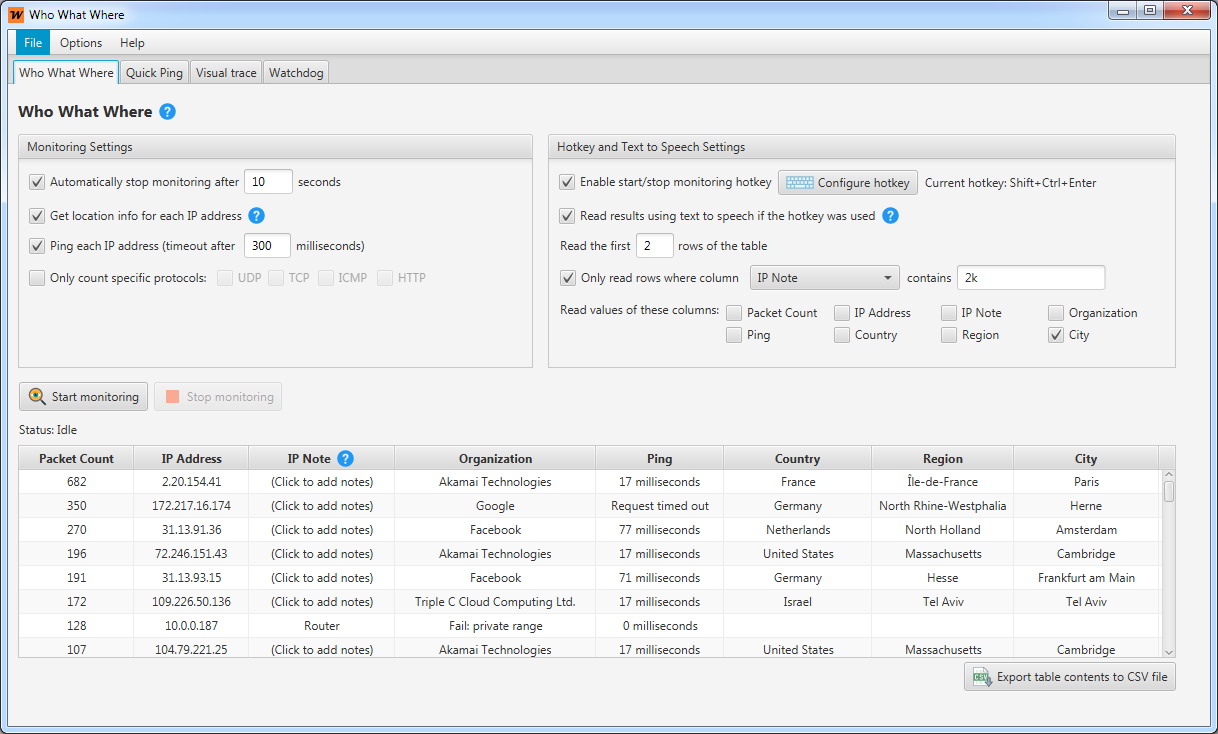
See the IP addresses that your computer communicates with, sorted by amount of packets transmitted. Shows GeoIP information (organization, country, region, and city) and a ping result for each address. Examples where this might be useful are monitoring suspicious internet connections and determining a game server's IP.
UsageClick "Start monitoring" to let Who What Where monitor your network traffic. When monitoring stops (manually by pressing the button or using the hotkey, or when a predefined timer expires) the table will get populated with the IP addresses that your computer communicated with during the monitoring, along with some useful statistics. When you use the hotkey to start or stop monitoring you can optionally have the results read out to you, so that you don't need to have Who What Where visible on your screen.
Automatically stop monitoring: If enabled, monitoring will stop automatically after a certain amount of time. If disabled, monitoring will stop when the user clicks the "Stop monitoring" button (or uses the hotkey).
Get location info for each IP address: If checked, every IP address entry will also show its owning organization name and geographical location information (see limitations). If unchecked, the results will be displayed a bit quicker.
Ping each IP address: If checked, each IP address entry will also show the ping result to that IP. The pings are performed after monitoring is stopped and the results get updated in the table as they arrive.
Protocol selection: If no protocol is selected, then all protocols will be counted. Otherwise, only packets of the selected protocols will be counted.
Enable start/stop monitoring hotkey: Instead of manually pressing the start/stop buttons, you can use a hotkey. The hotkey is active globally, meaning it can be pressed while any other application is used and even when Who What Where is minimized to the system tray. The hotkey is used for both starting and stopping the monitoring.
Read results using text to speech if the hotkey was used: If the text to speech feature is enabled and the hotkey is used to start or stop monitoring, the results will be read out to you - so that you don't have to look at the application screen. This is useful when you already know what you're looking for.
Filter the results that are read out: Filter out what is read to you, the first few rows or only rows that contain a certain value in a certain column.
Read values of these columns: Select which column values to read out, for example only organization and city.
- IP notes: See here.
Right-click options: Right-clicking on a result in the table opens a pop-up menu with some useful options, one of which loads a website with more (or different) GeoIP information for the selected row's IP address (see also GeoIP Limitations).
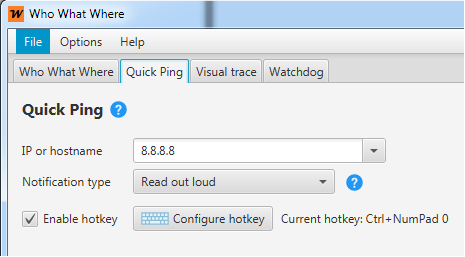
Press a hotkey and hear the result of a ping sent to a predefined IP address or hostname. This is especially useful while playing online games. The ping result can be shown in a pop-up message or read out loud in one of several voices and languages (English, French, German, Italian).
UsageEnter any IP or hostname, and press the hotkey. The ping result will be read out or shown in a pop-up message. If you choose to have the result read out loud, you can select from several voices and languages (English, German, French, Italian) through the menu "Options" -> "Configure text to speech voice". The hotkey is configurable, and the default one (Ctrl+NumPad 0) requires the numlock on your keyboard to be on.
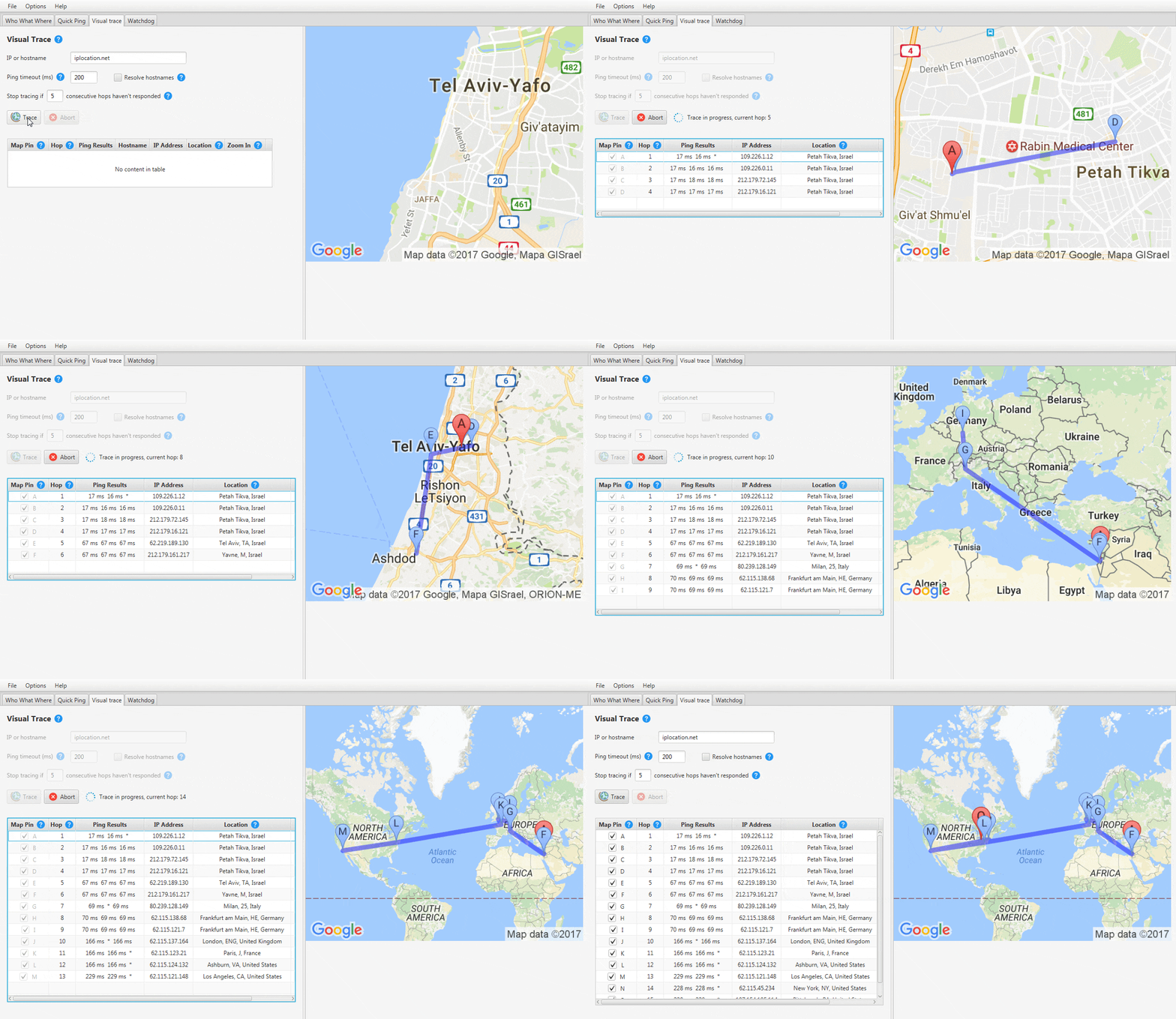
Perform a traceroute for a given IP address or hostname and see the route plotted on a map as the trace progresses.
UsageEnter any IP or hostname, and set the settings to your preferred values. Click "Trace" to start, and watch the route get plotted as the trace advances.
Ping timeout: Sets the timeout for each of the 3 pings that are perfromed per hop.
Resolve hostnames: Try to get the hostname of each hop. Keep in mind this might slow the trace down.
Stop tracing if X consecutive hops haven't responded: Automatically stop the trace once it's not likely that another hop will be discovered, instead of waiting for the trace to end by reaching its maximum of 30 hops.
Show/hide map pins: When the trace ends (either by reaching the destination hop or due to the user aborting the trace) you can show/hide any map pin on the route by checking/unchecking the map pin checkbox on the trace results table.
Zoom in: Click the magnifying glass icon (in the "Zoom in" column) to see the exact location of the hop. The zoom level can be refined by clicking the arrows. Click the magnifying glass icon again to go back to viewing the full route.
Right-click options: Right-clicking on a hop in the table opens a pop-up menu with some useful options, one of which loads a website with more (or different) GeoIP information for the selected row's IP address (see also GeoIP Limitations).
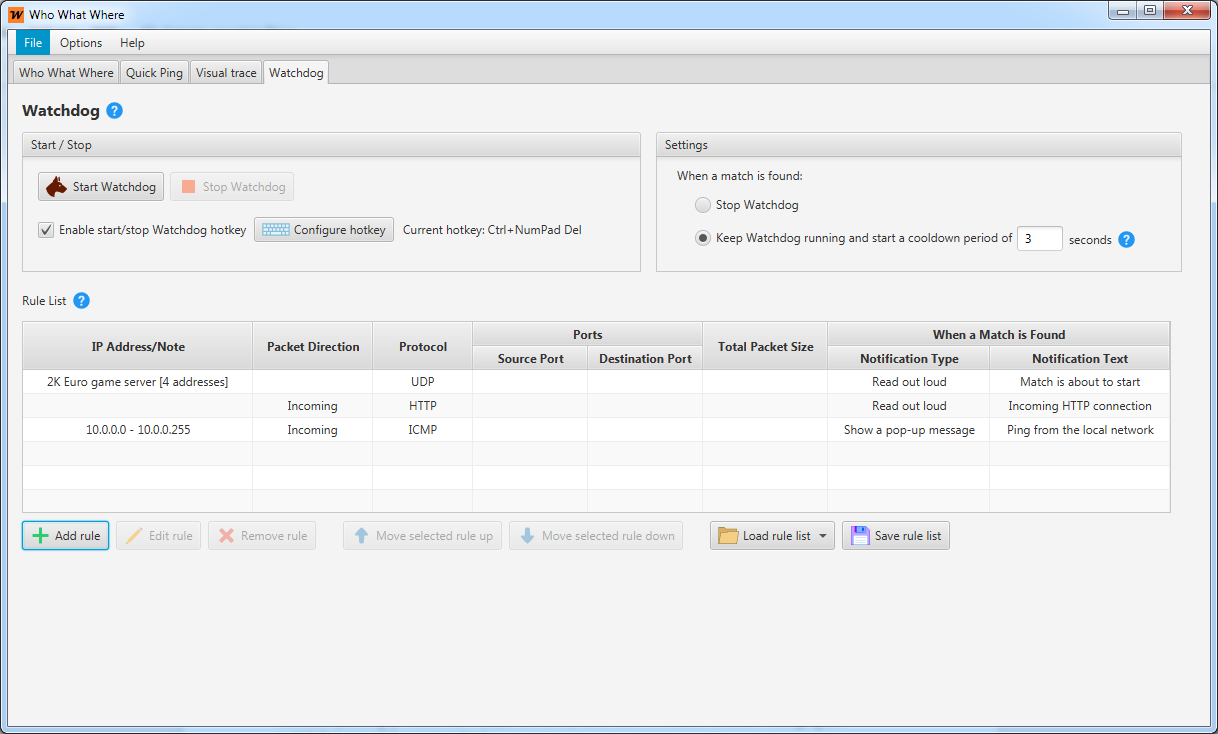
Inspects network traffic and checks if any packet matches a predefined filter. Filters include IP address or ranges (subnets), packet direction (incoming/outgoing), protocol, source/destination ports, and packet size. Upon finding a match, a predefined message will be displayed in a pop-up message or read out loud in one of several voices and languages (English, French, German, Italian).
This feature can be used as a notifier for an incoming connection, for example.
Create rules by clicking the 'Add rule' button (see "Adding rules" below). The created rules will appear in the rule list. The order of the rules in the list is important, because the rules are checked in the order they appear in the list; if a packet matches a rule then the rules below it will not be checked for that packet (for example, if rule #1 matches any UDP packet and rule #2 matches packets on port 1234, then UDP packets on port 1234 will match only rule #1). Rules in the list can be moved up/down by clicking the "Move selected rule up/down" buttons.
Choose one of two operation modes that determine what happens after a match is found:
Stop Watchdog: Once a match is found, Watchdog stops itself.
Keep Watchdog running: Watchdog keeps running until you stop it. If you choose this mode you need to specify a cooldown period, which is the minimal amount of time between getting Watchdog notifications; its purpose is to avoid flooding you with messages in case many matches occur one after the other.
Start/stop Watchdog by clicking the start/stop buttons or by using the hotkey. The default hotkey (Ctrl+NumPad Del) requires the numlock on your keyboard to be on.
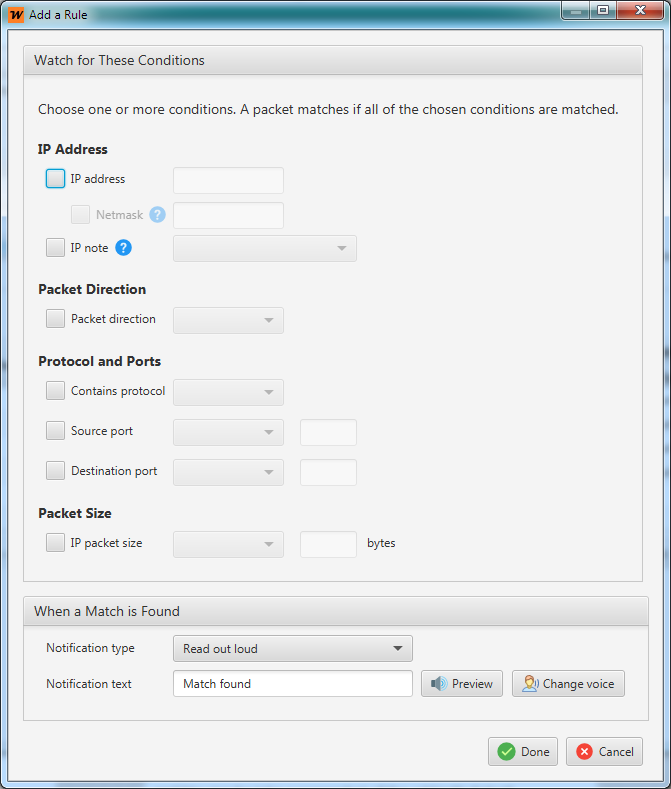 Adding rules
- IP Address
- Choose either IP address or IP note. If packet direction is selected, this condition will refer to the source IP address for incoming packets, and destination IP address for outgoing packets. If packet direction is not set, then this condition will refer to either source or destination IP addresses.
IP address: Either a single IP address, or a range of addresses if a netmask is specified.
IP note: Select an IP note, which can be mapped to more than one IP address. See here.
- Packet Direction
- If set, only incoming/outgoing packets will match. If not set, both incoming and outgoing packets will be matched.
- Protocol and Ports
-
Contains protocol: Only match packets that contain a layer of this protocol. Some protocols are implicit, for example HTTP naturally includes TCP.
Source/Destination ports: Match packets with these TCP/UDP ports. If no protocol was selected, it will match both TCP and UDP packets that use the specified ports.
- Packet Size
- IP packet size: Match packets with an IP layer of the specified size. Note that the size is for the IP layer only (meaning IP layer and its payload which may include higher layers such as TCP and HTTP for example, but not the entire packet size which includes the lower layers like Ethernet etc).
General Usage
Exit or minimize
By default closing Who What Where's window minimizes it to system tray. To exit the program use the menu "File" -> "Exit" or right-click the icon in the system-tray and choose "Exit". To make Who What Where exit upon closing its window, uncheck the menu item "Options" -> "Minimize to system tray on close".
Pick your network adapter
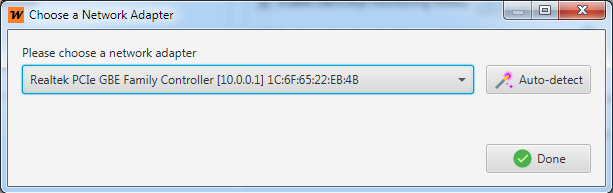
If your PC has more than one active network adapter, a choice dialog will be displayed on the first run of the program. You can use the "Auto-detect" button or choose your network adapter from a list. If you ever need to change the selected network adapter, you can get to this dialog by using the menu "Options" -> "Select network adapter".
Choose a text to speech voice and language
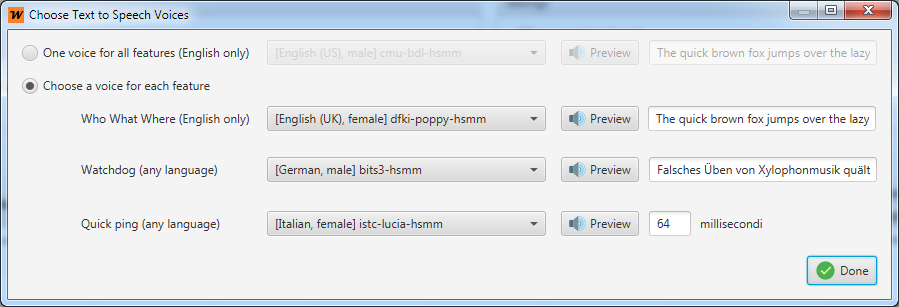
Use the menu "Options" -> "Configure text to speech voice" to choose a voice and language for the various features. Currently voices in languages other than English (German, French and Italian) can only be used for Quick Ping and Watchdog. You can preview each voice by clicking on the "Preview" button, and you can also customize the preview text.
IP notes
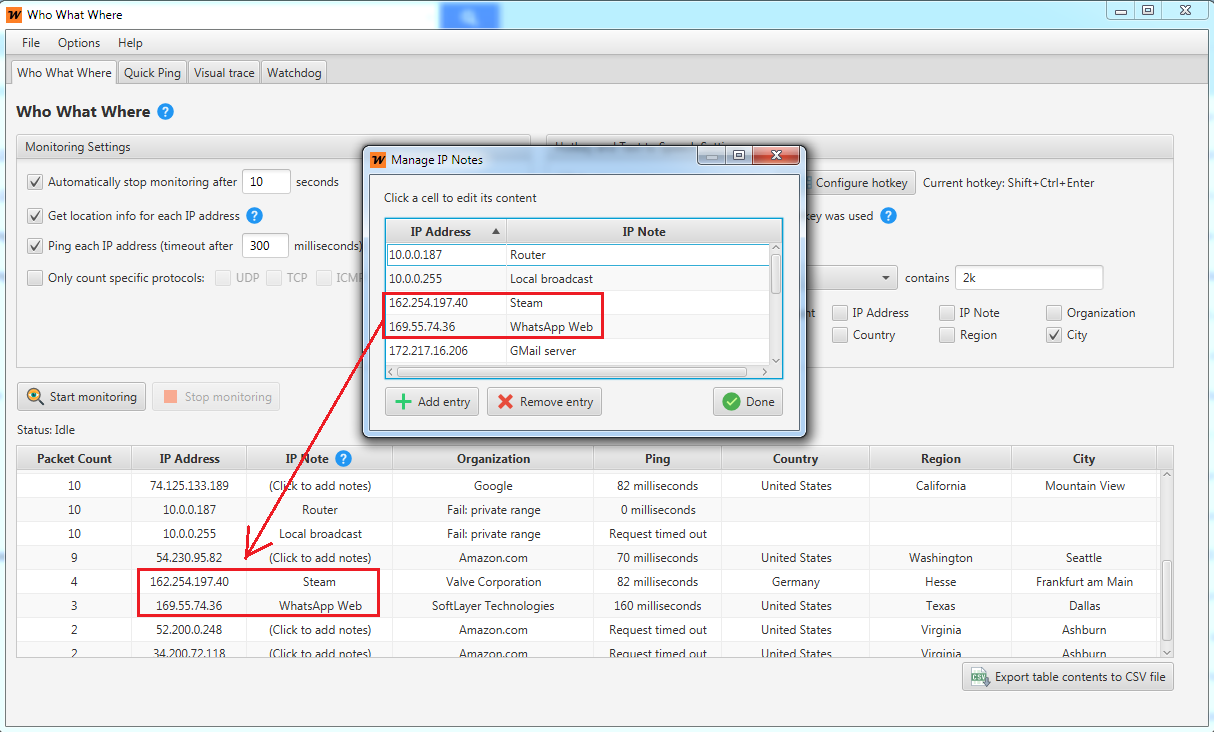 An IP note is an association between a name and one ore more IP addresses. When an IP address you've associated with an IP note appears in Who What Where's results table, its associated note will appear together with it for easier recognition. In Watchdog, an IP note can be used as a condition to match one or more IP addresses.
Manage IP notes from the menu "File" -> "Manage IP notes", or from the Who What Where feature by clicking the IP notes cell in a row.
Note about GeoIP Limitations
Geographical IP services aren't always accurate. The address is based on what the company that owns the address reported when the address was bought. Sometimes an international company might list all their IPs are located in one area (where the main offices are, for example), but some of these IPs may be used in other areas that the company operates. This is why sometimes for one IP address there may be more than one possible location, or an incorrect one.